How to Resize a Canada Passport Photo (Free, No Studio Needed)
Canadian passport photos have a few specific rules that trip people up - particularly around what counts as an acceptable self-taken photo. Here's exactly what's required.
Canada Passport Photo Requirements
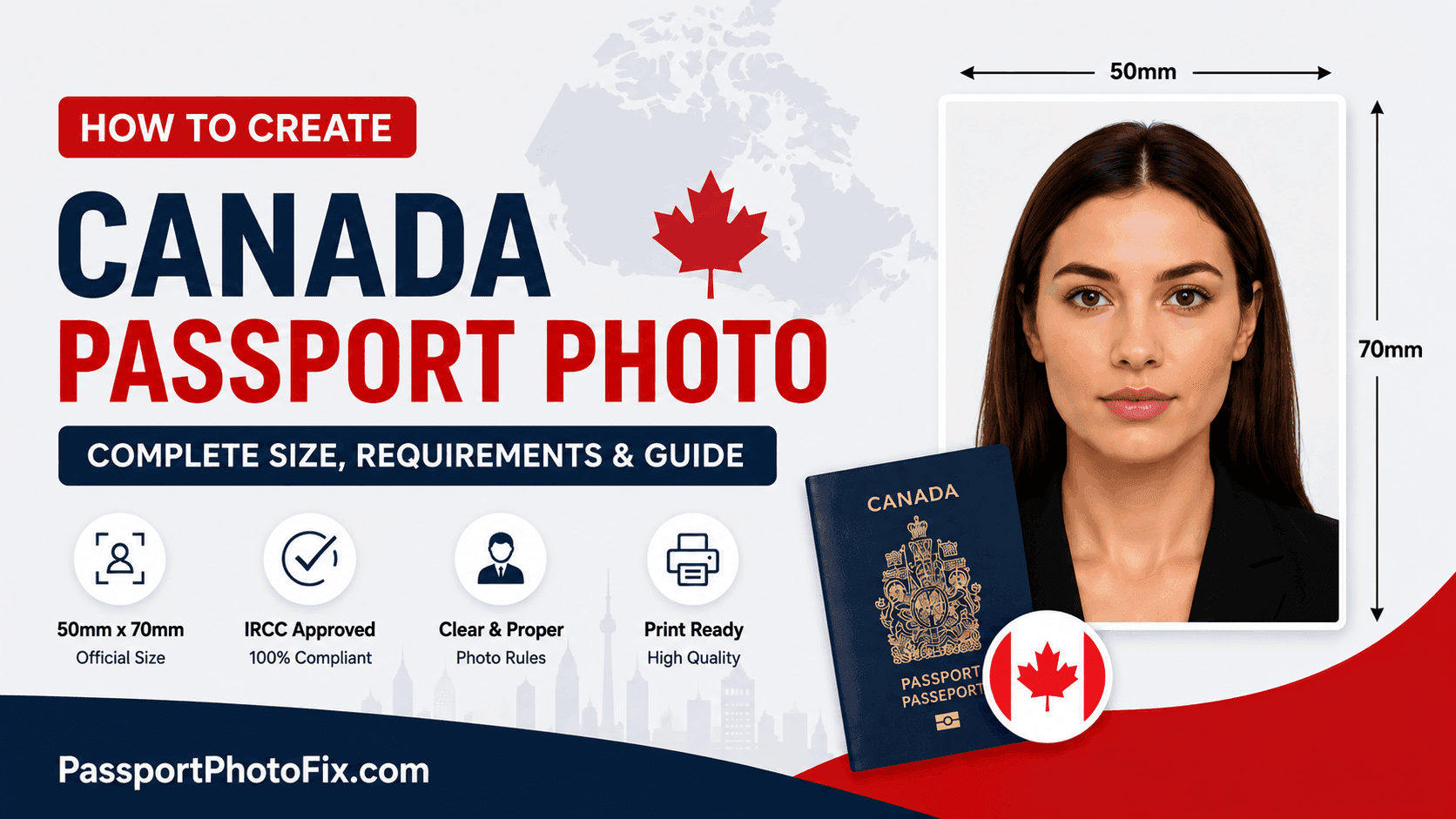
- Size: 50 x 70mm (2 x 2.75 inches), with face height between 31mm and 36mm from chin to crown
- Background: Plain white or light-colored, no shadows or patterns
- Expression: Neutral, both eyes open - no glasses
- Recency: Taken within the last 6 months
Step 1: Take the Photo
Stand about 4-5 feet from a plain white or light-colored wall, face the camera directly, and use natural, even lighting - avoid harsh overhead light that creates shadows. A regular phone camera works fine, and a self-taken photo is generally accepted as long as it meets all the requirements below.
Step 2: Resize It to the Exact Specification
Your photo needs to be cropped precisely to 50x70mm with your face sized correctly within that frame. Getting this exact by hand is where most DIY attempts go wrong - a few millimeters off and it can get flagged.
You can use a free tool like PassportPhotoFix to handle this automatically - upload your photo, and it crops and resizes it to the exact Canadian passport specification, entirely in your browser.
Step 3: What to Wear (and What to Avoid)
Wear normal, everyday clothing in a color that contrasts with the background. Avoid uniforms, and avoid white or very light-colored clothing that blends into the background. Hats and head coverings aren't allowed unless worn for religious reasons.
Step 4: Double-Check Before You Submit
Compare your finished photo against the official requirements on the Government of Canada's website before submitting, since requirements can be updated.
Common Mistakes to Avoid
- Wearing glasses
- A background with shadows, texture, or another person visible
- White clothing that blends into the background
- Using a photo older than 6 months
Getting the size and background right the first time helps avoid delays in your application.